
Turn Google Meet into a podcast stage.
One click puts any guest's camera or screen share on a clean, branded 16:9 stage, with no Meet buttons in the picture. OBS captures it as a window, so a live stream with remote speakers looks like a real video podcast.
- Free
- Nothing leaves your browser
- Guests install nothing
- Chrome on a laptop or desktop
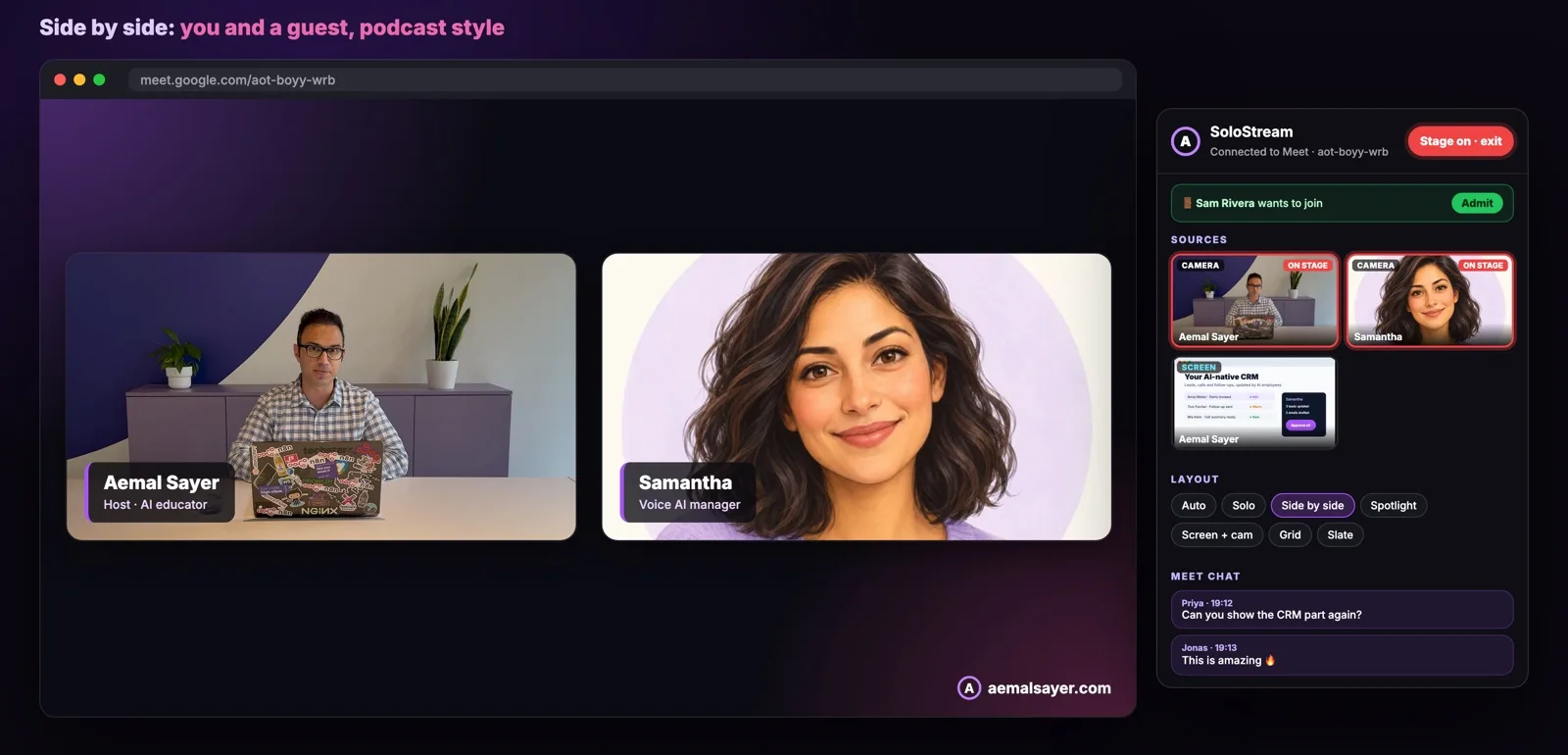
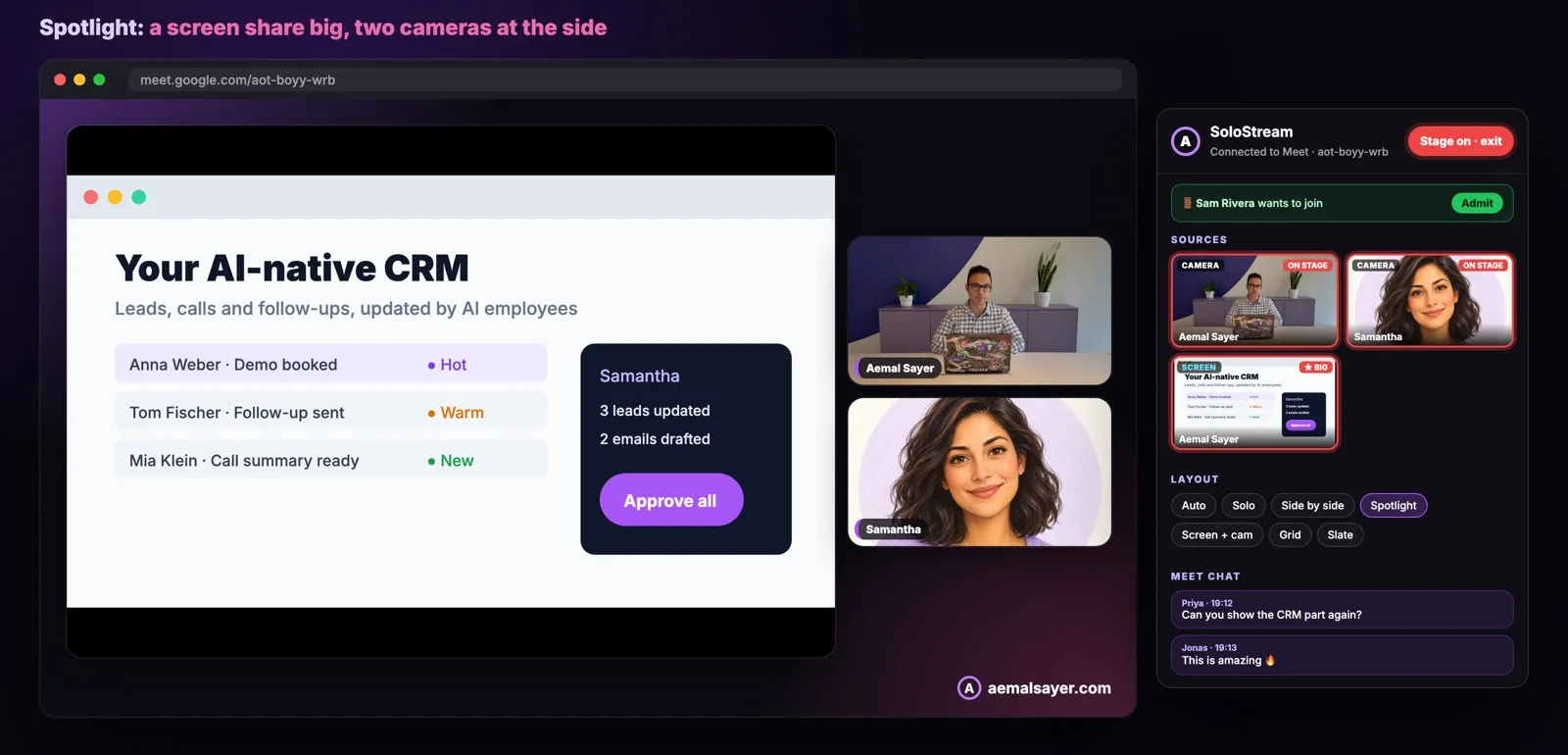
Six layouts, one click each.
One camera or one screen share, full stage.
You and a guest, podcast style, with name lower thirds.
One person or screen big, everyone else small at the side. Click anyone to make them big.
A guest's screen share full stage, their camera in a corner.
Up to 4 people, for panel discussions.
Branded "Starting soon" or "Be right back" screen.
Any mix of people. Every camera and screen share in the call is its own source, and so is your own camera, picked by device. Put one person on stage, or combine any of them. Everything else stays hidden.
Meet chat, in your control window. New messages pop up with a sound and an unread count, in a chat log like Samantha's. Click a message to show it on stage for your viewers.
Let people in while live. Meet's "someone wants to join" popup is hidden behind the stage, so SoloStream shows who's waiting, with an Admit button, in the control window.
Never a black screen. If a guest leaves or stops sharing, the stage switches to "Be right back" by itself. Press Esc and Meet is back to normal.
Two minutes, no store needed.
- Download the zip
Click the download button above, then unzip it. You get a folder called solostream. Keep it somewhere it can stay (Chrome loads it from there).
- Open your extensions
In Chrome, type chrome://extensions in the address bar and press Enter.
- Turn on Developer mode
Top right of that page. This lets you install an extension from a folder, without the Chrome Web Store.
- Load unpacked
Click "Load unpacked" and choose the solostream folder. SoloStream appears in your list.
- Pin it
Click the puzzle icon in Chrome's toolbar and pin SoloStream, so its icon is always one click away.
From Meet call to stream.
- Join your call
Open Google Meet and join as usual. If Meet was already open, reload the tab once. Guests install nothing, they just join.
- Pick who's on stage
Every camera and screen share in Meet gets a small "+ Stage" button. Click it to put that person or screen on stage, click again to take them off. The purple SoloStream button at the bottom left opens all the options.
- Go live, full screen
A bar appears with the layouts and a red "Go live, full screen" button. One click and Meet's buttons and tiles disappear behind a clean, branded 16:9 stage, with nothing else on it.
- Control it from your second monitor
Going live opens the SoloStream control window. Drag it to your other screen (it opens there next time) and switch people, layouts, slates and chat from there. Click a person's star to make them big, "Only this" to show just them. People waiting to join show up there with an Admit button.
- Back to Meet
Press Esc in the Meet window, or click the stage button in the control window, and Meet is back to normal.
- Capture it in OBS
Add a Window Capture of the Meet window (macOS: Window Capture, choose your browser, the Meet window). Audio comes from Meet as before.
Early version, honestly.
- Only your view changes. Guests see Meet as normal. SoloStream doesn't record or stream: OBS (or Meet's own recording) does that.
- Private by design. No video, audio, names or chat ever leave your browser. It only runs on meet.google.com.
- Meet changes its page often. If sources stop showing up, SoloStream warns you. Download the newest version here and replace the folder.
- Chat needs Meet's chat panel. Meet only puts messages on the page while its chat panel has been opened.
- Coming next: follow the active speaker automatically, OBS scene switching, and your own brand colors and logo.
Updating
Download the new zip, replace the old solostream folder with the new one, then click the reload arrow on SoloStream in chrome://extensions and reload your Meet tab.
See it live.
I use SoloStream in my online and hybrid sessions with remote speakers. Join one and watch how it looks on the stream.
© Copyright All Rights Reserved